

Subscriptions have become one of the most powerful revenue models in 2025. Whether you’re selling consumables, digital products, memberships, SaaS tools, grooming kits, food supplies, or niche D2C products – subscriptions increase customer lifetime value, reduce churn, and create stable recurring revenue.
But WooCommerce does not support subscription functionality by default.
To enable recurring billing, renewals, subscriber controls, and automated charges, you must use a WooCommerce Subscription Plugin. In this complete guide, you’ll learn exactly how to add subscription functionality to your WooCommerce store, how to set it up properly, and which features you need to scale.
Let’s break it down step-by-step.
What Is A WooCommerce Subscription Plugin?
A WooCommerce Subscription Plugin is a tool that allows your online store to sell products or services on a recurring basis. Instead of a one-time checkout, customers subscribe to a product and get charged automatically every week, month, quarter, or year.
What A subscription Plugin Enables:
- Recurring billing
- Auto-renewal for orders
- Pause / cancel options
- Subscriber dashboards
- Renewal notifications
- Payment retry system
- Automated invoices
- Flexible billing cycles
- Subscription reports
Types Of Subscription Setups:
- Simple Product Subscriptions (flat recurring price)
- Variable Subscriptions (different plans)
- Service-Based Subscriptions
- Physical Product Subscriptions (like coffee, protein, skincare, pet food)
- Digital Subscriptions (software, courses, memberships)
Every WooCommerce store that wants consistent monthly revenue needs a subscription system. And the easiest way is with a plugin.
Benefits Of Adding Subscription Functionality To Your Store
Predictable Recurring Revenue
Monthly recurring revenue (MRR) allows your business to forecast cash flow accurately, scale marketing, and optimize inventory.
Reduce Manual Reordering
Customers don’t have to come back each time, they simply stay subscribed and orders are renewed automatically.
Automated Billing & Renewals
The plugin handles charges, renewal dates, notifications, and payment retries. You don’t have to do anything manually.
Higher Customer Lifetime Value (CLV)
Subscription customers stay longer and spend more.
Better Inventory Planning
Predict subscription cycles and manage stock more accurately.
Why You Should Use A Plugin Instead Of Custom Coding Subscriptions
Custom coding may seem like a shortcut, but it becomes a long-term problem:
Problems With Custom-Coded Subscriptions:
- Break during WooCommerce updates
- Compatibility issues with payment gateways
- Missing renewal logic
- No retry system for failed payments
- No customer subscription dashboard
- No built-in email reminders
- Hard to maintain
Why Plugins Are Better:
- Stable
- Secure
- Compatible with gateways
- Feature-rich
- Fully automated
- Built for WooCommerce core
Plugins like Reordere, for example, offer all subscription essentials while remaining lightweight and user-friendly.
Recommended Features In A WooCommerce Subscription Plugin (Checklist)
Before choosing any plugin, ensure it supports the following :
✔ Create subscription products
✔ Recurring billing cycles
✔ Automatic renewals
✔ Free trials and signup fees
✔ Pause, resume, and cancel controls
✔ Subscription management dashboard
✔ Renewal reminders and failed payment recovery
✔ Compatible with major gateways (Stripe, PayPal, Razorpay)
✔ Inventory syncing and stock handling
✔ Add-on renewals
✔ Custom renewal dates
A plugin like Reordere includes all these features and is ideal for both physical and digital subscriptions.
How To Set Up Subscriptions In WooCommerce (Step-by-Step Guide)
Let’s walk through the complete setup.
Step 1 – Install A WooCommerce Subscription Plugin
Go to:
WordPress Admin → Plugins → Add New
Search for:
- “subscription plugin for WooCommerce”
or upload the plugin ZIP if downloaded from a marketplace.
Click:
Install → Activate
Your subscription system is now added to WooCommerce.

Step 2 – Configure Subscription Settings
After activation, go to:
WooCommerce → Settings → Subscriptions
Configure the essentials:
Billing Cycle Setup
- Weekly
- Monthly
- Quarterly
- Yearly
- Custom intervals
Retry Rules
Set how the system handles failed payments.
Subscription Management
Enable:
- Pause
- Resume
- Cancel
- Upgrade/Downgrade
Email Notifications
Turn on:
- Upcoming renewal reminder
- Subscription cancelled
- Payment failed
- Customer renewal invoice
Taxes & Pricing
Configure tax rules for recurring charges.
Step 3 – Create A Subscription Product
Now that subscriptions are active, create a product:
Steps:
- Go to Products → Add New
- Add your product title & content
- Scroll to the Product Data box
- Choose Simple Subscription or Variable Subscription
- Set price:
- Regular subscription price
- Signup fee (optional)
- Free trial days (optional)
- Set renewal schedule
- Set stock & inventory handling
Click Publish.
Your subscription product is now live.
Step 4 – Connect Payment Gateways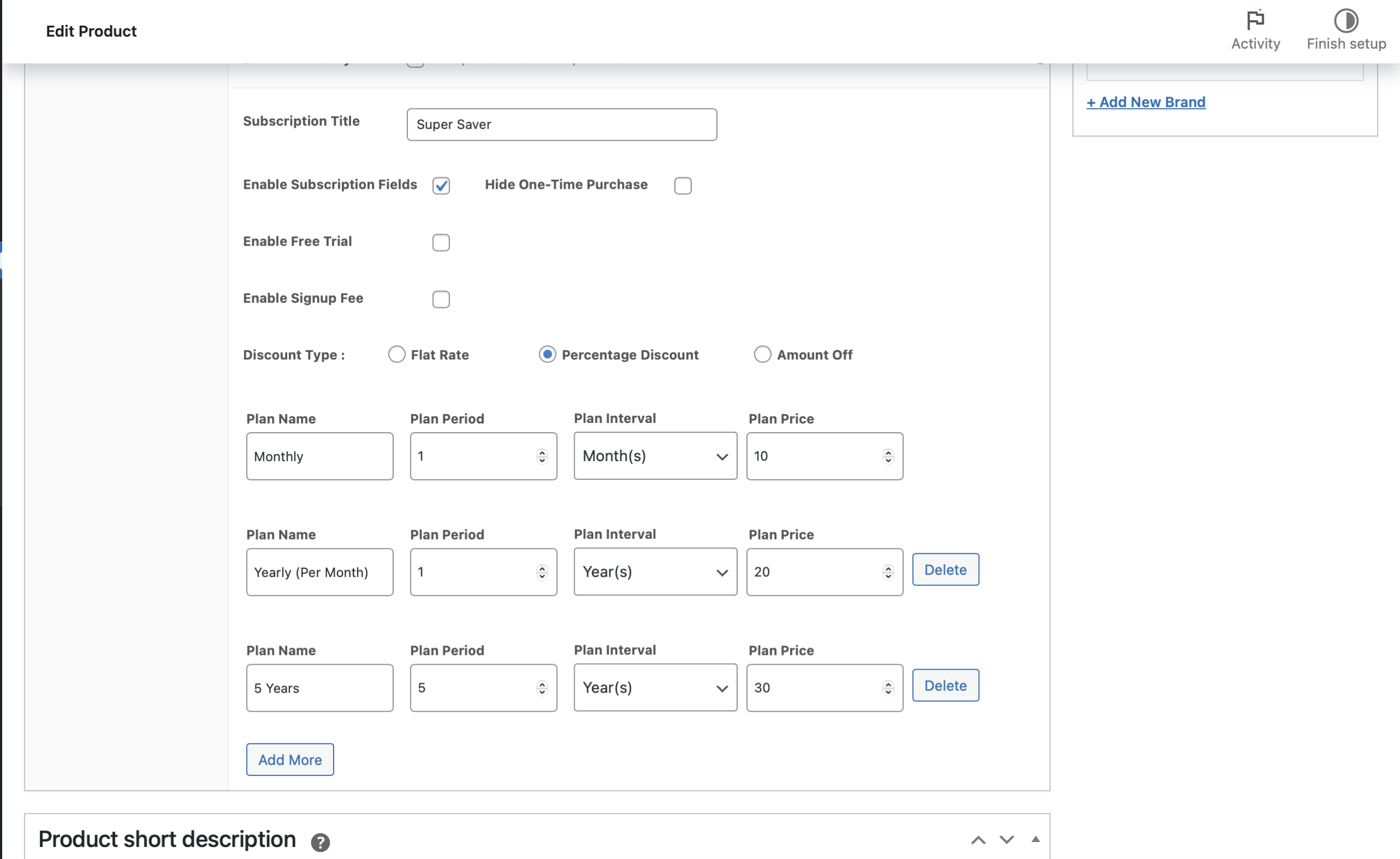
Subscriptions require payment gateways that support recurring billing.
Compatible options:
- Stripe (best)
- PayPal
- Razorpay
- WooCommerce Payments
- Mollie
- Authorize.net
Important:
Make sure the gateway supports:
✔ recurring payments
✔ automatic charging
✔ saved cards
Step 5 – Test Subscription Checkout
Before going live, test using sandbox mode.
Test:
- Checkout
- Renewal
- Cancel/pause
- Email notifications
- Payment retries
Make sure everything runs smoothly.
Step 6 – Launch Live Subscriptions
Switch to live mode in your payment gateway.
Start promoting your subscription offering on:
- Homepage
- Product pages
- Banners
- Popups
- Email marketing
- Social ads
Your WooCommerce subscription system is now fully functional.
Best Practices To Improve Subscription Conversions
Use these strategies to increase sign-ups.
-
Use Psychological Pricing
₹499 instead of ₹500
$9.99 instead of $10
Makes the pricing feel affordable.
-
Offer Free Trials
Let customers try the product risk-free.
Free trials are proven to boost conversions by 35-45%
-
Add Renewal Transparency
Clearly mention:
- renewal dates
- renewal amount
- cancellation policy
Google ranks transparent subscription pages higher.
-
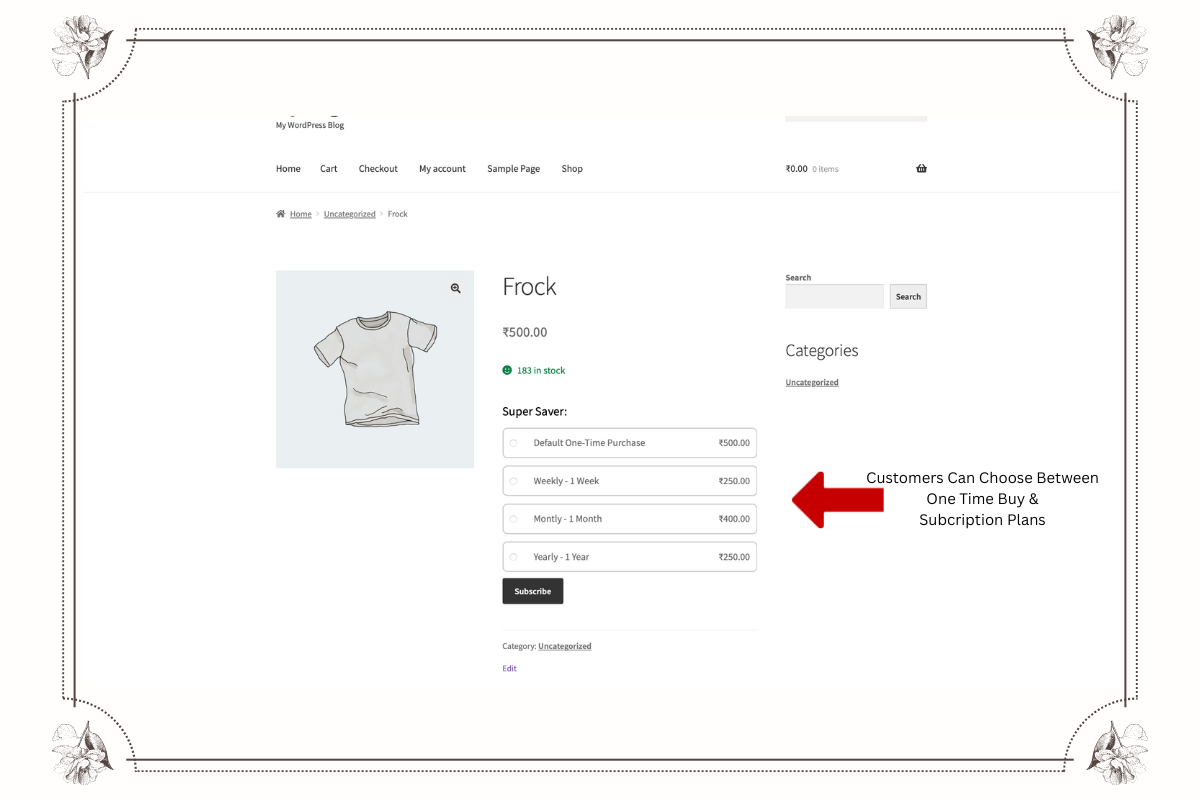
Use Subscription Badges
Highlight the subscription type on:
- product listings
- product detail pages
-
Add One-Click Upgrades/Downgrades
Allow users to switch plans easily.
Common WooCommerce Subscription Problems & Fixes
Below are the most common subscription issues and how to solve them.
-
Failed Subscription Payments
Cause: insufficient funds, expired card, gateway error
Fix: enable payment retry rules + notify customer
-
Cron Job Not Working
If WP Cron is disabled, renewals won’t run.
Fix:
Enable WP Cron or set a real server cron job.
-
Renewals Not Triggering
Usually caused by:
- improperly configured billing cycles
- gateway limitations
- plugin conflict
Fix:
Check the plugin logs and reconfigure billing rules.
-
Emails Not Sending
Fix:
Use SMTP mail service (SendGrid, Mailgun, Gmail API).
Why Reordere Is A Powerful WooCommerce Subscription Plugin
If you’re searching for a lightweight, stable, and feature-packed WooCommerce subscription plugin, Reordere is an excellent choice.
It provides:
- Flexible billing cycles
- Automated renewals
- Customer subscription dashboard
- Inventory-aware renewals
- Trial periods
- Email notifications
- Payment recovery
- Easy setup
- WooCommerce-native interface
It’s ideal for stores selling digital products, memberships, or recurring physical goods.
👉 Click Here to install the Reordere Plugin
Final Thoughts: Start Offering Subscriptions On WooCommerce Today
Adding subscription functionality to WooCommerce is one of the highest-impact upgrades you can make in 2025. It increases repeat revenue, automates billing, reduces manual workload, and improves customer retention.
All you need is a good WooCommerce Subscription Plugin, proper setup, and solid communication on your product pages.
If you’re ready to grow your store with recurring sales, start implementing subscriptions today and take advantage of one of the most powerful ecommerce models.







Leave A Comment